Navigate to: Login Page > “Forgot your password?”
1. Overview
This article provides information on how users can reset a forgotten password using the Forgot Password functionality. It guides users through the password reset process using either the Sandbox or Production environment login page.
2. When Should You Reset a Password?
Password reset should be performed in the following scenarios:
- First Time Login
- Forgotten login password
- Unable to access the account due to incorrect credentials
3. Prerequisites
Before resetting the password, ensure that:
- The user account has been created in the Artifi Admin portal.
- You have access to the registered email address associated with the account
- You are aware of whether access is required for the Sandbox or Production environment.
4. Steps to Reset the Password
Use the following steps to reset your password:
1. Enter the link below in the browser.
- Sandbox Environment: https://integrationadmin.artifi.net
- Production Environment: https://admin.artifi.net
2. Login Page will appear. 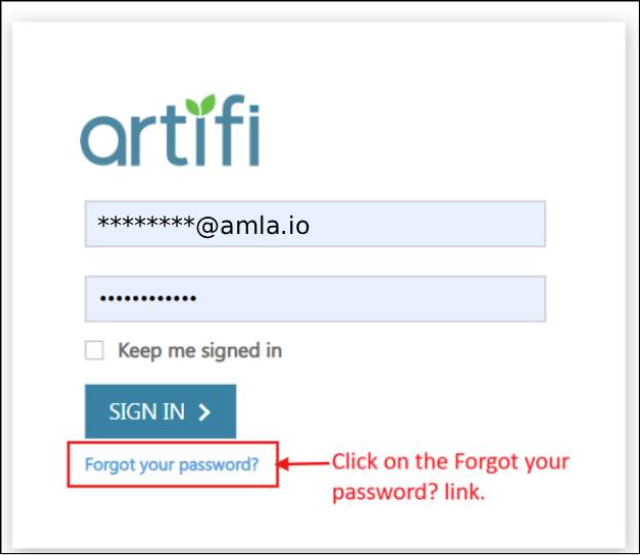
3. Click on the Forgot your password? Link. 
4. Enter the registered email address and click on the Continue button.
5. A password reset email will be sent to the above entered email address. 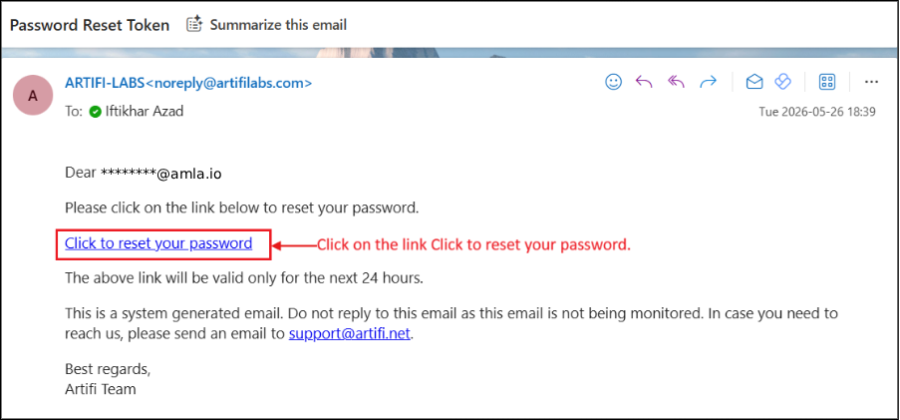
6. Click on the link Click to reset your password to reset your password. 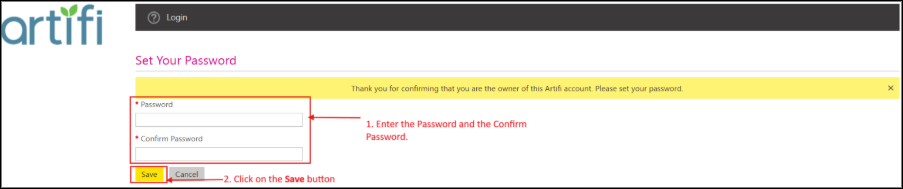
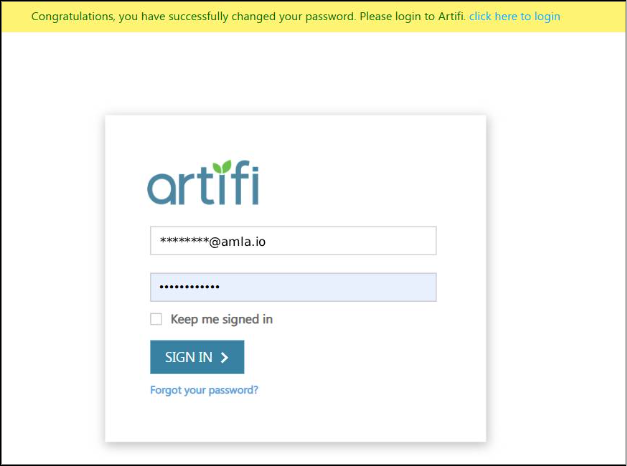
7. Enter the Password and the Confirm Password. Click on the Save button and the newly added password will be saved, and a message will be displayed.
7. Next Step
After successfully resetting the password, the user will be able to log in using the updated credentials.
8. Common Issues & Troubleshooting
Issue: Password Reset Email Not Received
Possible Cause
- Entered email address is incorrect
- Email is redirected to Spam/Junk folder
- Mail delivery delay from the server
Resolution
- Verify that the correct registered email address was entered
- Check the Spam/Junk folder in the mailbox
- Wait for a few minutes and retry the process
- Contact the administrator if the issue persists
Issue: Unable to Set New Password
Possible Cause
- Password does not meet the required password policy
- New Password and Confirm Password do not match
Resolution
- Ensure the password meets the required complexity criteria
- Verify that both password fields match exactly
- Retry the password reset process
9. Best Practices & Recommendations
- Use a strong password containing uppercase letters, lowercase letters, numbers, and special characters
- Avoid reusing old passwords
- Do not share login credentials with others
- Update passwords periodically for better security
10. Related Articles
11. Q&A
What should be done if the password is forgotten?
A: Click on the Forgot your password? link on the login page and follow the password reset process.
Where will the password reset link be sent?
A: The password reset link will be sent to the registered email address.
What if the password reset email is not received?
A: Check the Spam/Junk folder and verify the entered email address.
Can the same reset link be reused multiple times?
A: No, password reset links are generally single-use and may expire after a certain duration.
What should be done if the reset link expires?
A: Repeat the Forgot password process to generate a new reset link.
Is access to the registered email mandatory for password reset?
A: Yes, access to the registered email address is required to complete the password reset process.