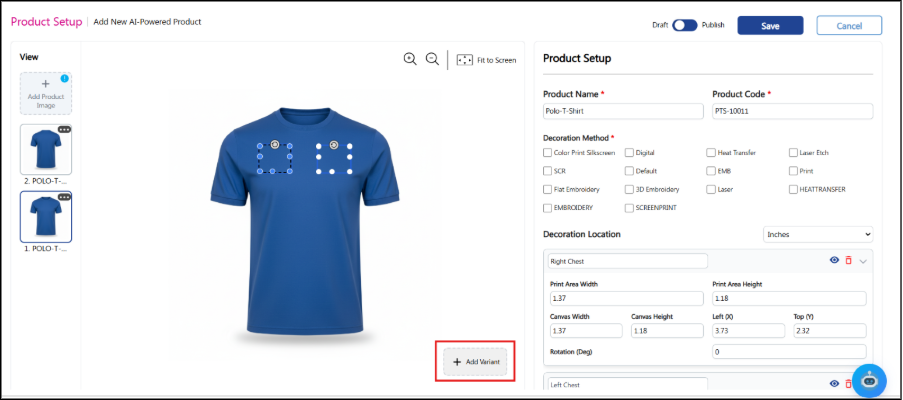
- Click on + Add Variant
- A popup will appear.

- Click on the Dropdown to select the existing Attribute.
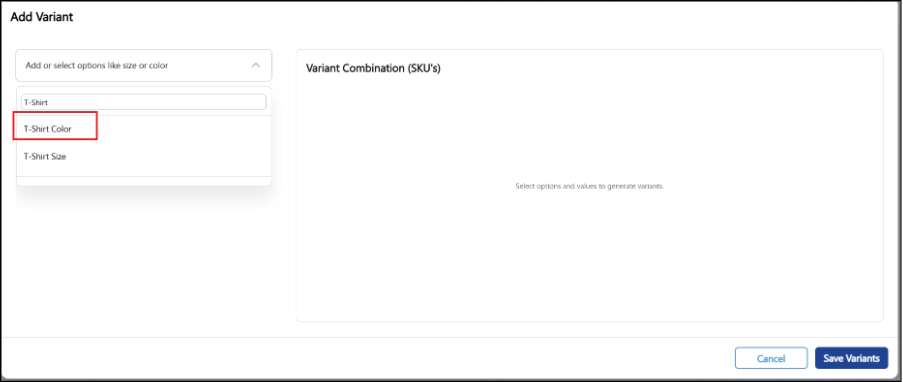
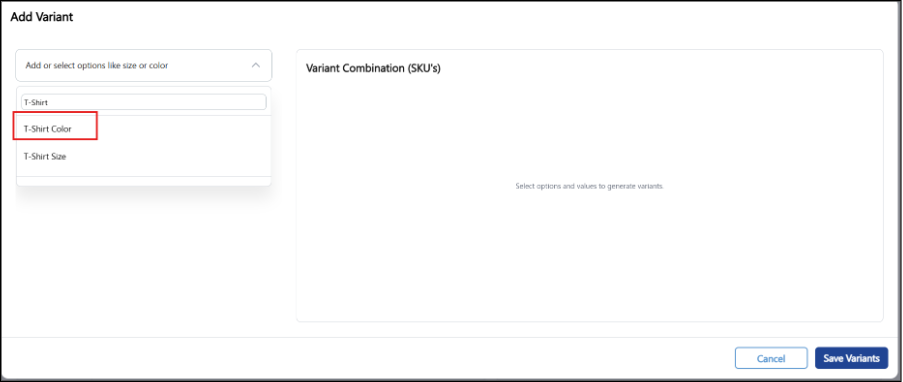
- Type the attribute that you want to choose e.g. T-Shirt Color. Below suggestions will appear based on the existing attributes that are present.
- Click on the dropdown of the Attribute Value. Select the Attribute Values that need to be configured.
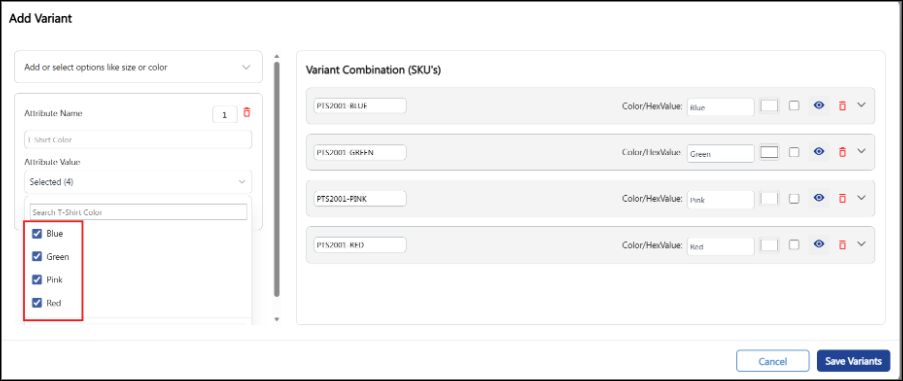
- If the values are not added, enter the values in the dropdown to add the new value. E.g. Orange.
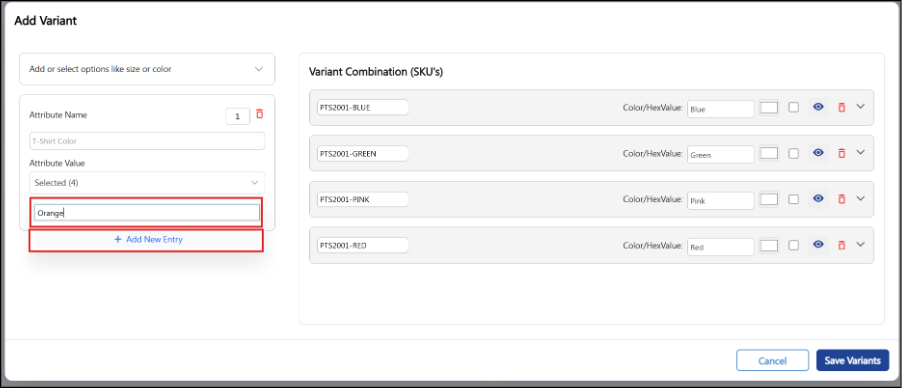
Click on Add New Entry. It will be added to the list.
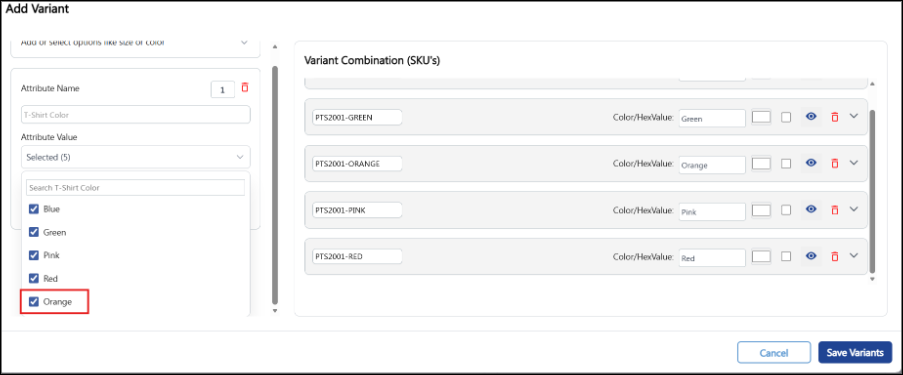
All the selected attribute values of variants are displayed on the right panel.
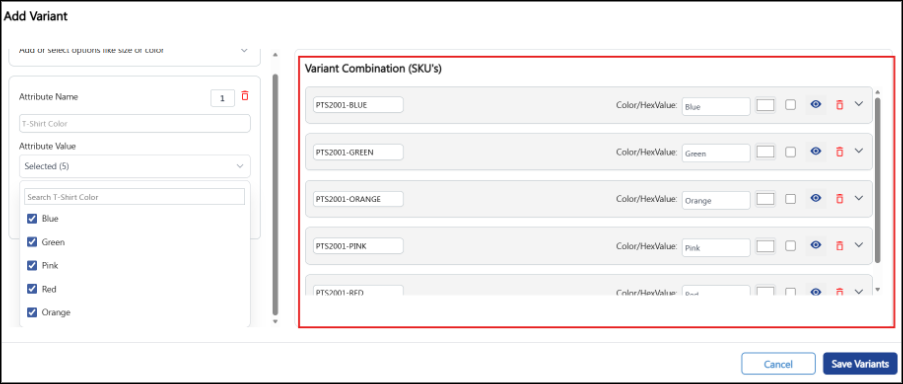
Upload the images of each variant as per selected attributes. Expand each row to upload the image by clicking on the empty space of the line item.
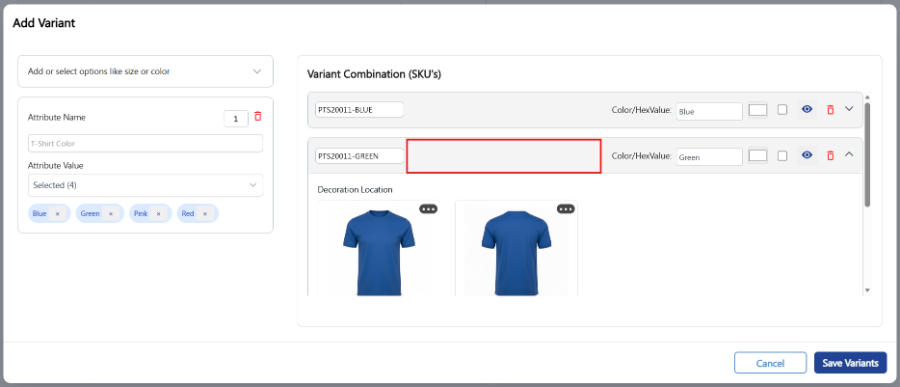
Click on the 3 dots to upload the variant images.
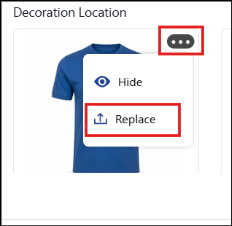
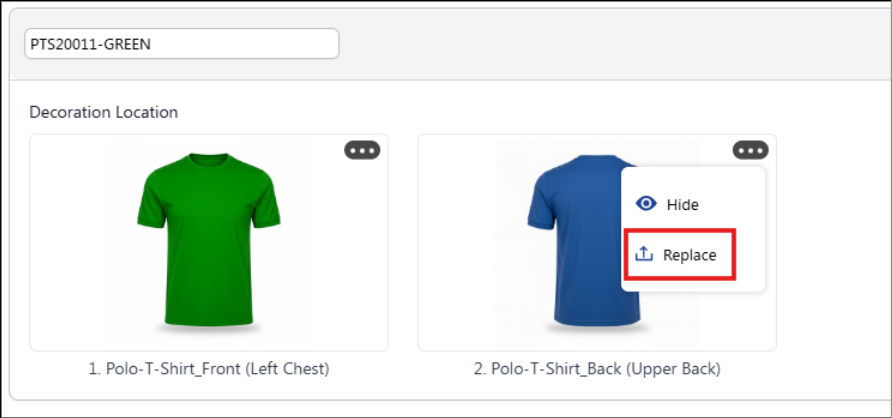
Click on the Replace icon. A popup will appear to upload the image.
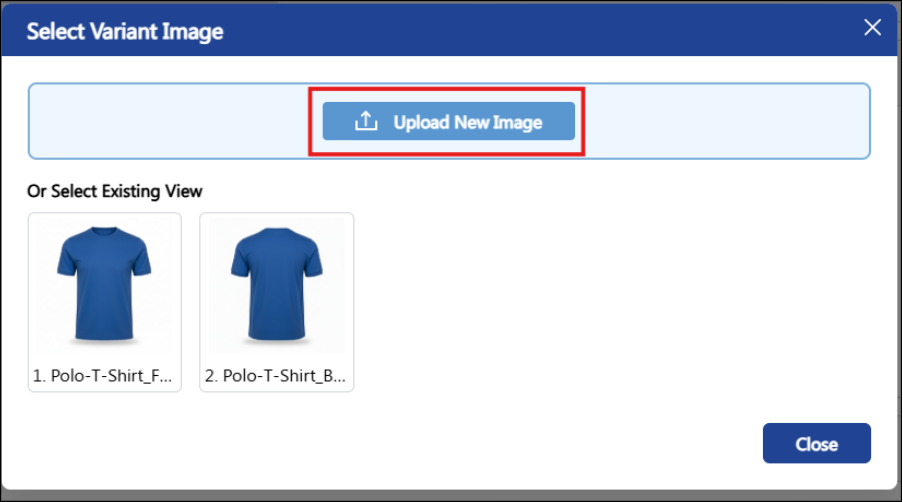
Click on Upload New Image to upload the variant image.
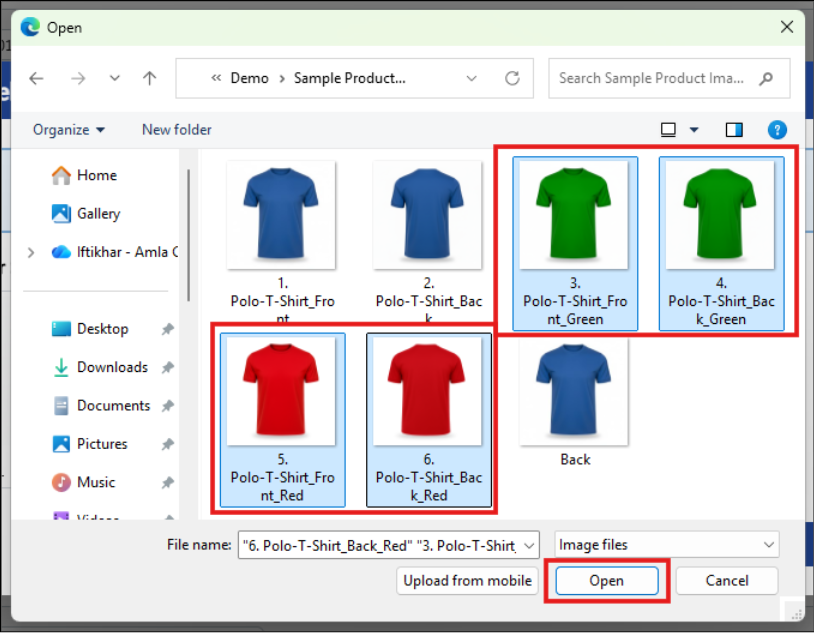
Select all the images and click on Open button.
Update the back view image as well by clicking on the 3 dots.
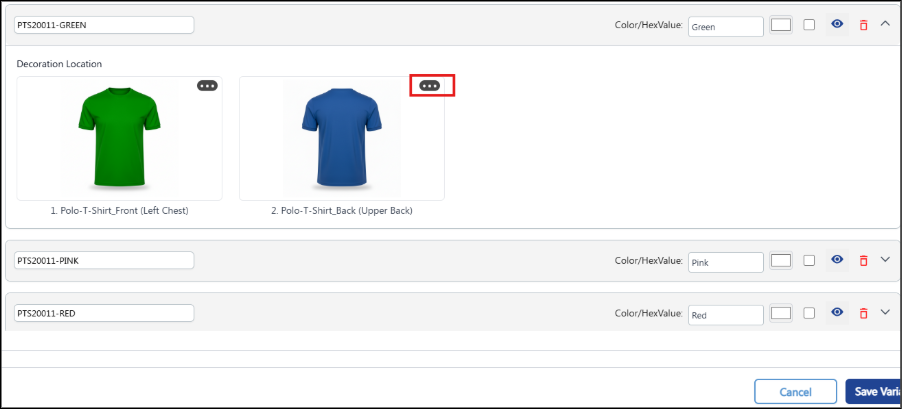
Click on the Replace icon.
A popup will appear. Click on the Back View image of the Green variant.
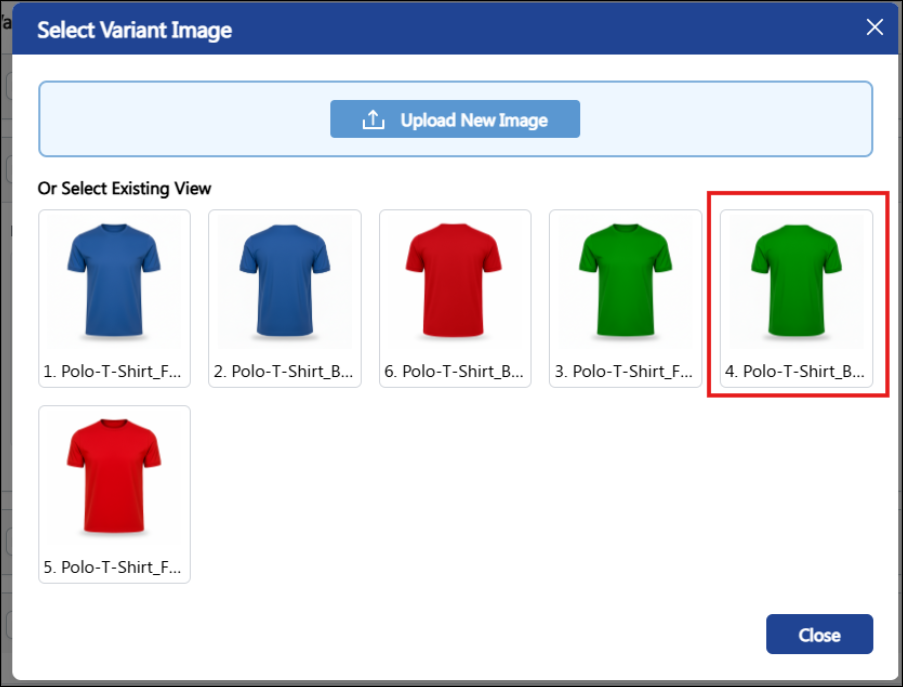
Image of the Back View will be applied.
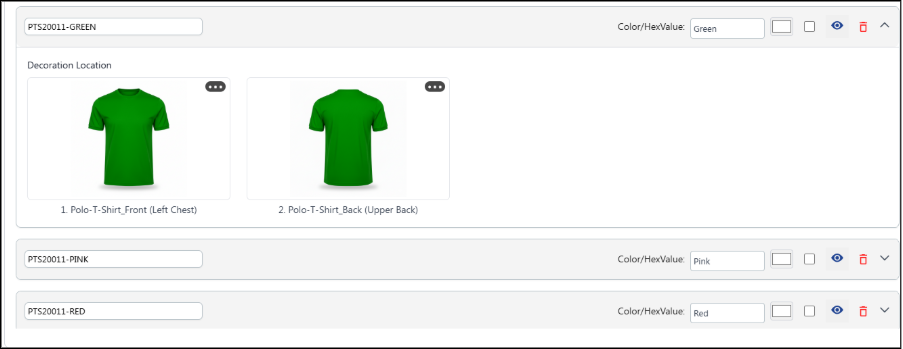
Similarly, update the images of all the other variants as well.
Suppose the image of a particular variant is not available. The image of that particular variant can be generated using Artifi Ai colorization.
For example: Pink T-Shirt image is not available. Generate it by adding the Hex Code or selecting the color pallet.
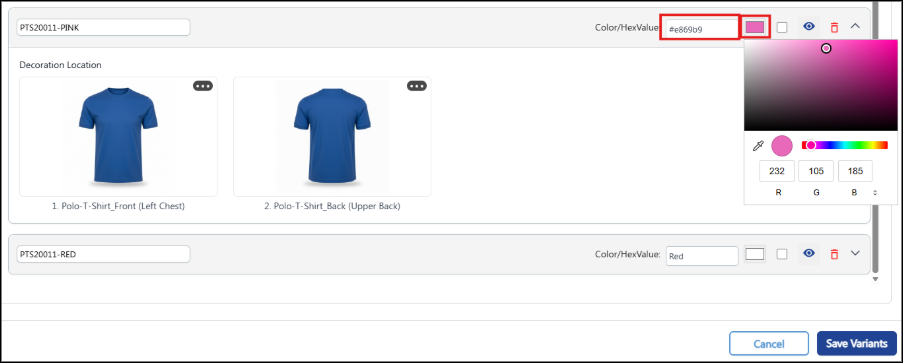
Select the checkbox beside the color pallete.
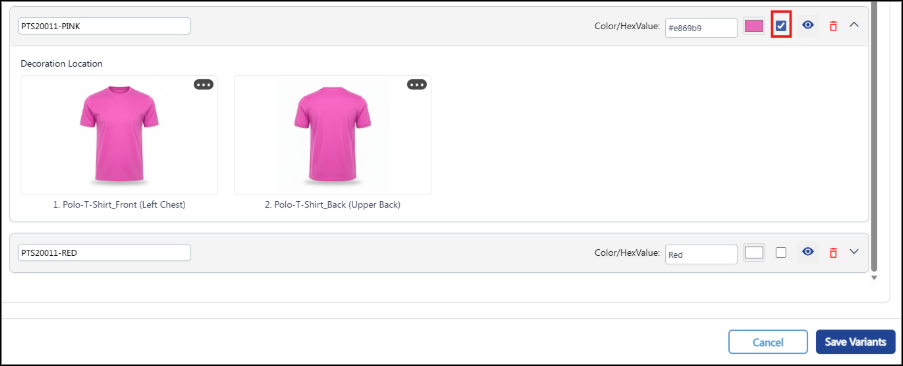
The images will be colored.
Once all the variant images are added. Click on the Save Variants button. The popup will be closed.
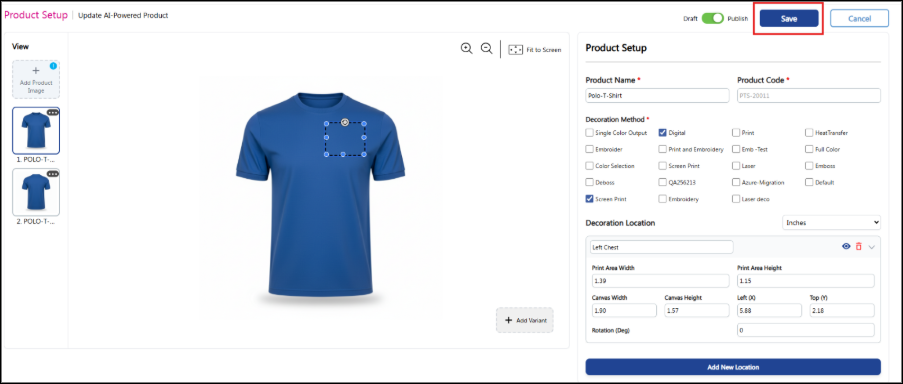
Click on the Save button to save the details.