Step 1: Product Setup
- Login to the Artifi Admin
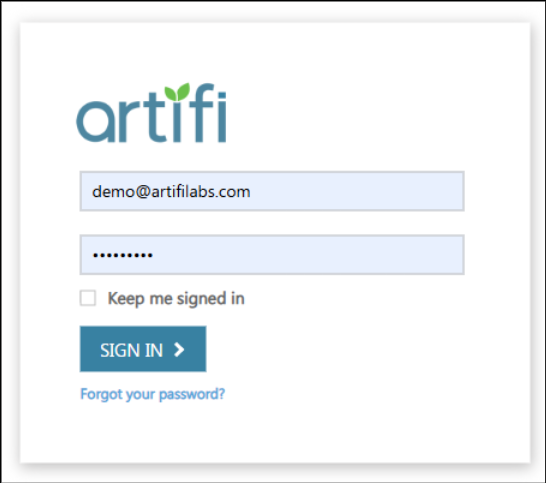
- Following are the two instances that can be utilized to setup the products.
Sandbox Environment (Practice Admin)Use the username and password provide by Artifi
Production EnvironmentUse the username and password provide by Artifi
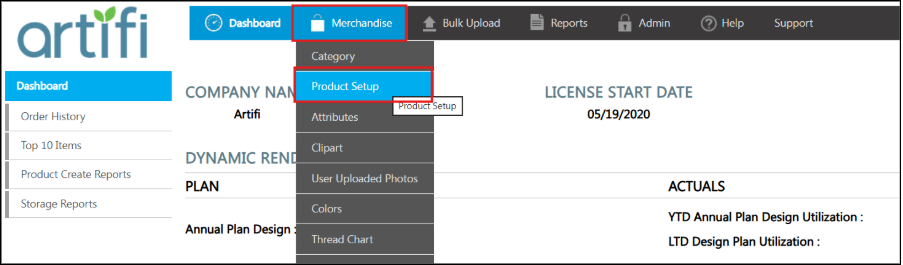
- Navigate to Merchandise >> Product Setup
- Click Add Product (AI) (on the top right corner).
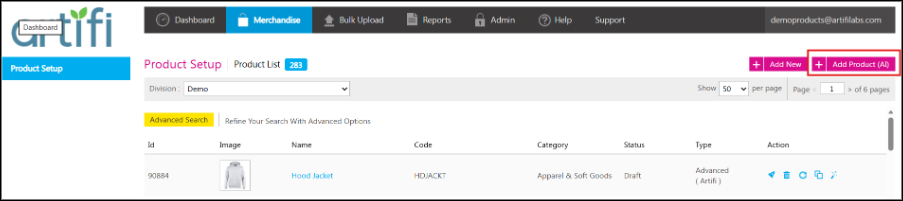
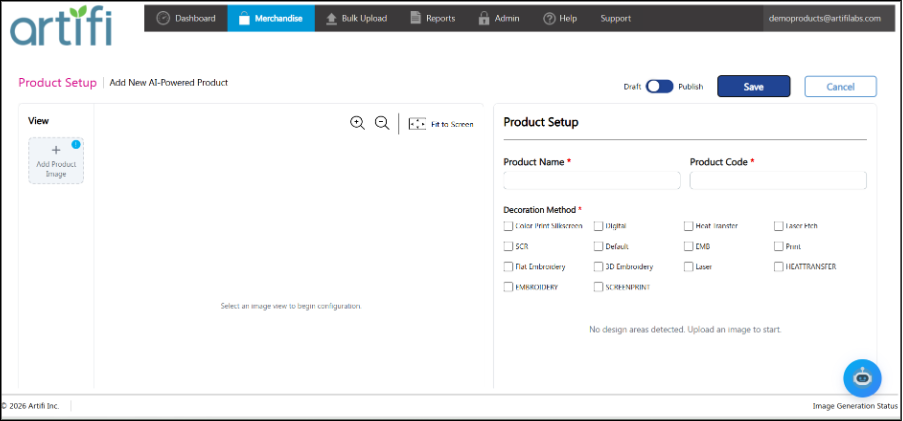
- This will open the page with a Product Setup tool.
Step 2: Upload Product View Images
- Upload the primary product image (front view) (Sample Product Images - OneDrive)
(PS. You can also upload multiple view images along e.g. Front, Back) - Click on the + Icon to add the view images.
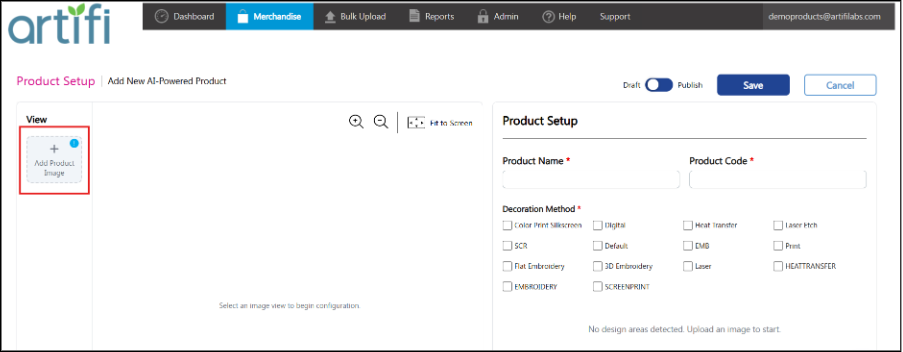
- Give the path where you have kept the 2D Images.
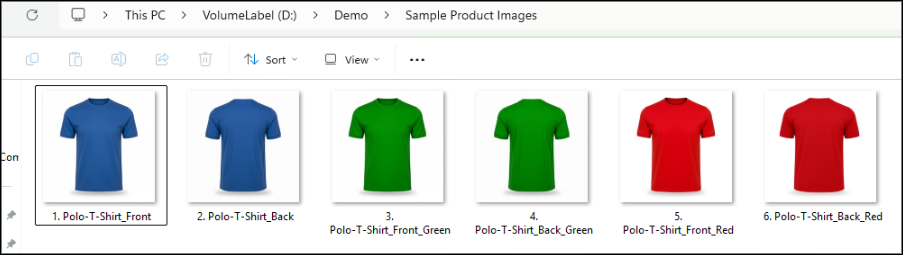
- Select the View Image where you want to draw the canvas area, i.e. design area.
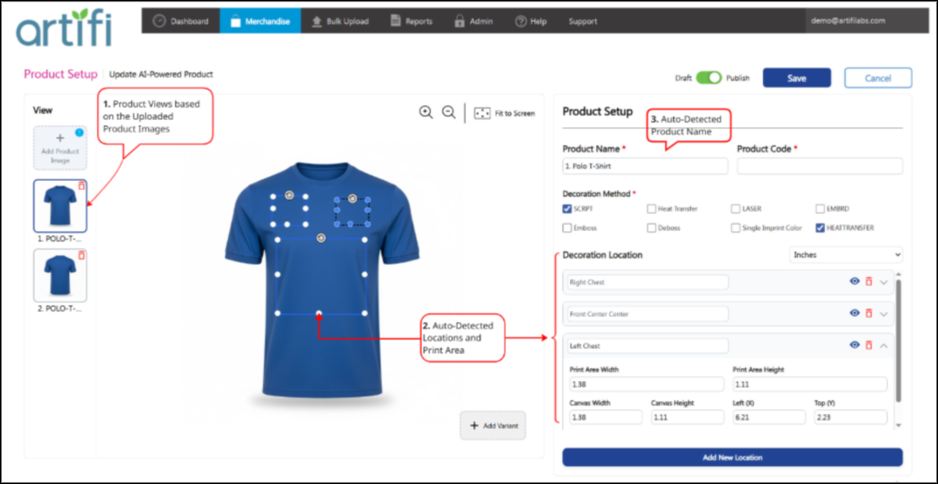
- AI automatically scans the images.
- Suggested decoration / print areas appear instantly.
Step 3: Define New Decoration Location
- This is optional, if you need to create additional decoration location apart from the detected location then use Add New Location button to add new location.
- Click Add New Location to create a custom zone
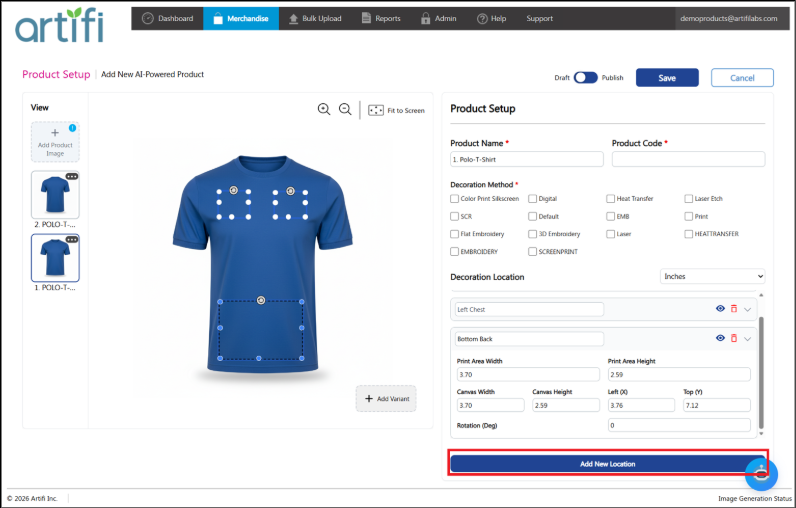
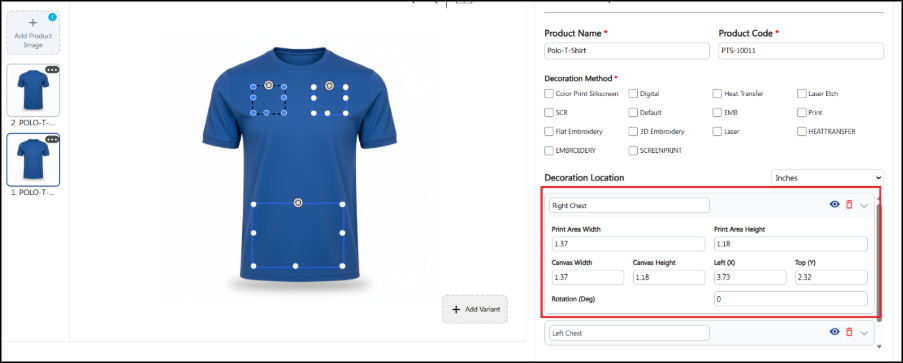
- When the admin user clicks on the Add New Location button, they can draw a canvas by moving the cursor over the product image and dragging the plus (+) icon. The admin can resize and adjust the bounding box visually on the image i.e. the canvas as needed based on the requirements.
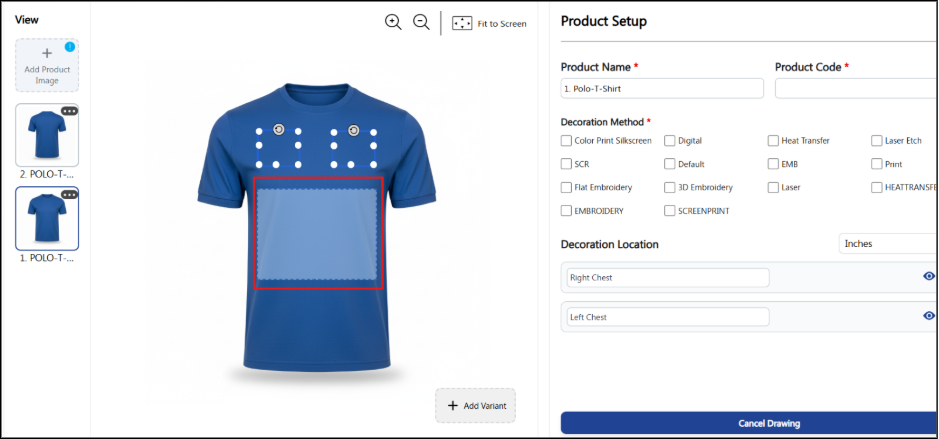
- Name the decoration location.
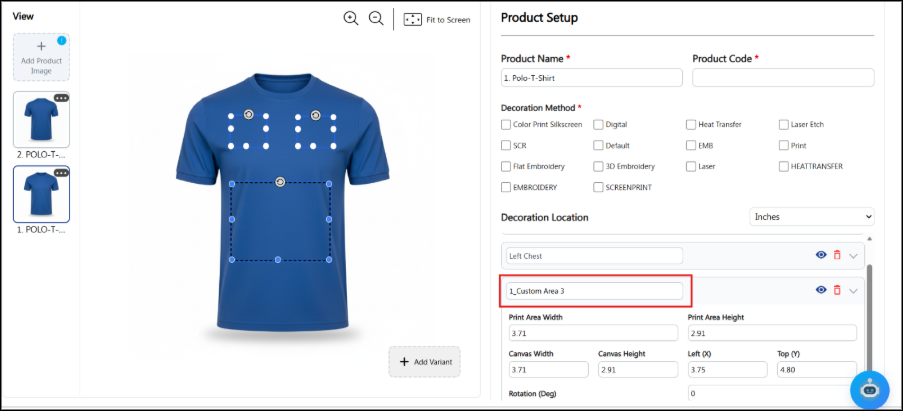
- Canvas width and height are auto calculated by the system
Step 4: Add Product Details
- Update Product Name (if required) and add Product Code. This product code should match the product code (SKU) present in the Ecommerce website.
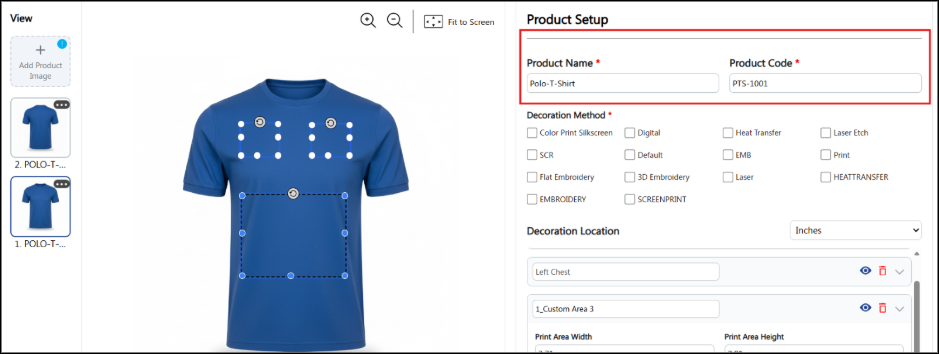
Step 5: Select Decoration Methods
- Select applicable decoration methods:
- Screen Print
- Embroidery (EMB)
- Laser
- Digital etc.
- At least one decoration method must be selected to proceed.
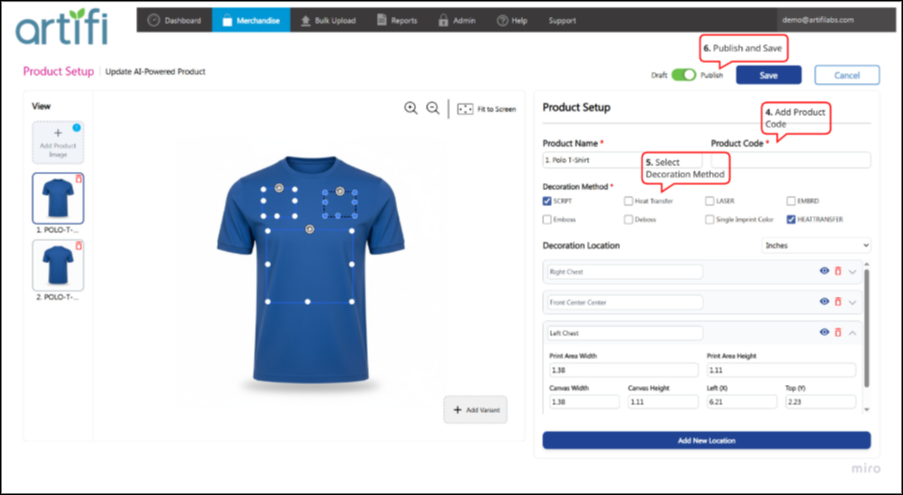
- Update the print area or canvas area when the detected area differs from the actual print or canvas area by expanding the location accordion.
Step 6: Save the Product and Launch
- Toggle from Draft to Publish and click on Save
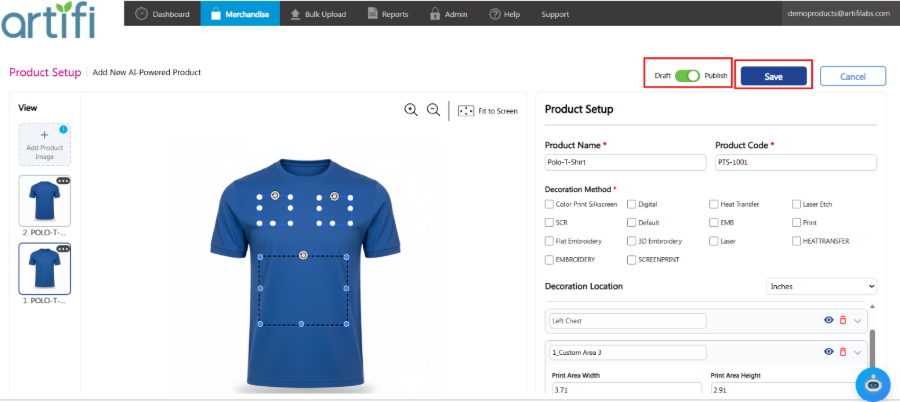
- Saving will redirect you to Product Listing Page.
- Click on Launch Icon to launch and preview the product.
- After creating the basic simple product, add variants by following the steps below if required.