Artifi Layout Integration is a streamlined integration approach that allows eCommerce applications to embed a fully functional, pre-built Artifi Designer interface with minimal development effort. Artifi manages the complete user interface, customization workflows, design editing, and preview capabilities.
The eCommerce application only needs to handle the integration and configuration required to launch the Artifi Designer, enabling a faster and more efficient implementation experience.
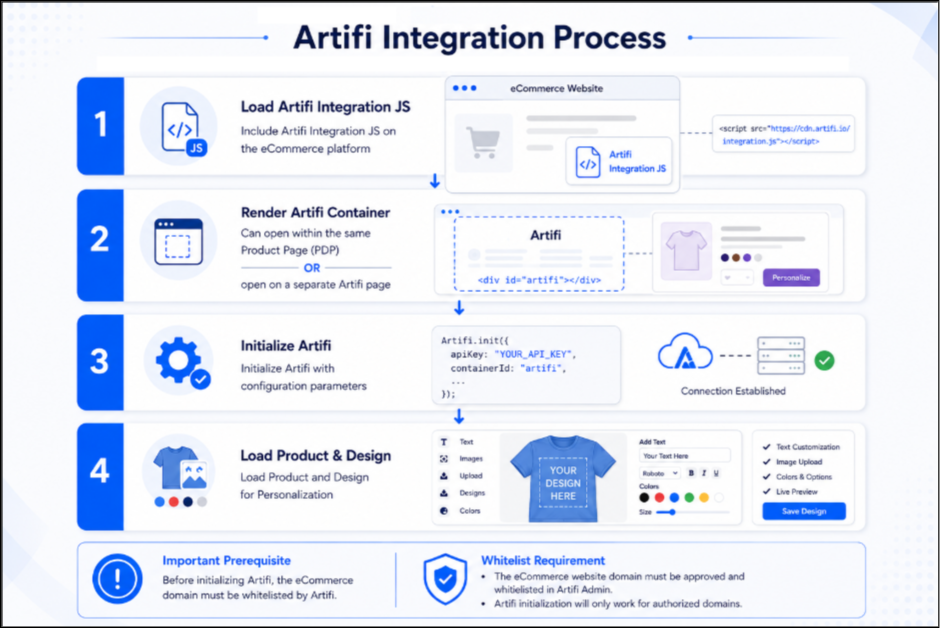
Layout Integration Workflow
1. Load Artifi Integration JavaScript
To enable Artifi personalization features within the eCommerce application, the Artifi Integration JavaScript must be added to all pages where customization functionality is required. This script serves as the foundation for integration by exposing the APIs and methods necessary to initialize, configure, and communicate with the Artifi platform.
Example
Include the following script inside the header section:
<script src="artifidomain.net/script/SasIntegration/ArtifiIntegration.min.js"></script>
Notes
- Ensure the integration script is loaded before calling any Artifi methods.
- Avoid duplicate script inclusion.
- Before Initialize the Artifi, all domains that will load or interact with Artifi must be whitelisted in Artifi admin. Here is the details link of Whitelisting domain
2. Render Artifi Container
Artifi renders its application inside a container element defined by the implementer. Unlike fixed implementations, the container ID is configurable and must match the value passed in the divId parameter during initialization.
HTML Example
<div id="artifi-container"></div>
Notes
- The container ID can be any valid unique ID (e.g., artifi-container, custom-artifi, etc.).
- The same ID must be passed in the divId parameter during Artifi.Initialize().
- Ensure the container exists in the DOM before initialization is triggered.
- Provide sufficient width and height using CSS to properly render the Artifi UI.
2.1. Artifi Launch Use Cases
Artifi can be integrated and launched in two different ways depending on the desired user experience and application workflow.
A. Launch Within the Same Page
In this approach, Artifi is opened within the same product page when the user clicks the Customize or Personalize button.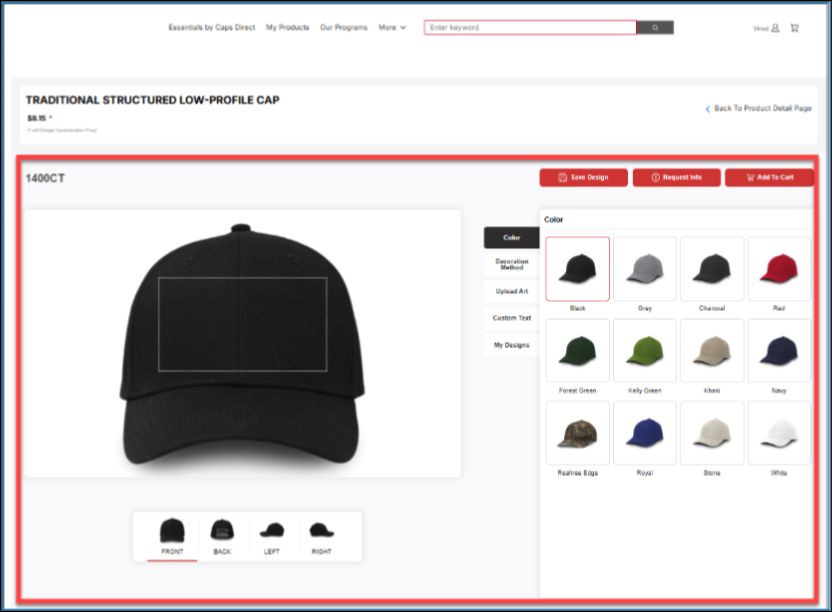
Artifi Layout launch in same page
Note
- On click of the customized button Artifi layout will launch in the same page.
- The highlighted area in the above image is the Artifi container where the layout is launched.
Handling Existing PDP Elements
To ensure a better user experience, it is recommended to manage (hide or minimize) certain PDP elements when Artifi is active.
Elements to Hide or Collapse based on user experience
- Product Image / Gallery
- Quantity (Qty) Selector
- SKU / Product Code Display
- Product Description / Details Section
- Additional PDP widgets (related products, reviews, etc.)
1. Ensure the Artifi integration JavaScript is loaded during page load.
2. Place the Artifi container (div) at the appropriate location on the page where the personalization interface should appear.
3. Use Artifi.Initialize() to initialize and render the Artifi application inside the specified container. The required initialization parameters are described in detail later in this document.
B. Launch in a New Page
In this approach, Artifi is opened on a separate page when the user clicks the Customize or Personalize button.
The user is redirected to a dedicated personalization page where Artifi is loaded. The eCommerce platform is responsible for managing and handling this redirection workflow.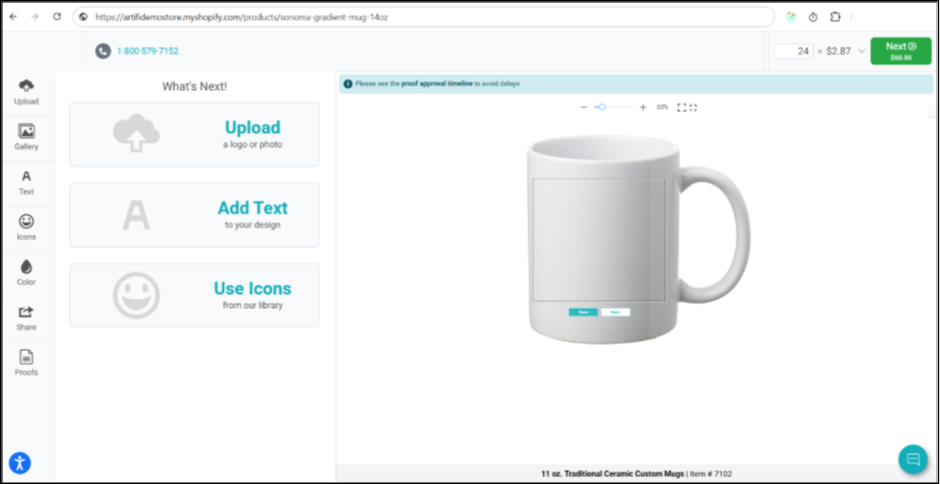
Artifi Layout launch in new page
Implementation Steps
1. Redirect to Personalization Page
On button click, navigate the user to a dedicated Artifi customization page.
2. Load the Artifi Integration Script
Include the Artifi integration JavaScript on the new page.
3. Add the Artifi Container
Add the container element where the Artifi customizer will be rendered.
4. Initialize Artifi
Call Artifi.Initialize() with all required parameters after the script is loaded.
Notes
- Ensure all required parameters are passed correctly when redirecting to a new page.
- Initialization must be triggered only after the integration script has successfully loaded.
3. Initialize Artifi
Artifi is initialized using the Artifi.Initialize() method with the required configuration values. These parameters define the product, user, and UI settings necessary to launch the Artifi personalization application.
The following section outlines the list of parameters that need to be passed to the Artifi.Initialize() method.
Sample Code
// Configuration
var integrationValues = {};
integrationValues.productCode = "";
integrationValues.websiteId = "";
integrationValues.webApiclientKey = "";
integrationValues.userId = "";
integrationValues.divId = "artifi-container";
integrationValues.isGuest = true;
integrationValues.width = "100%";
integrationValues.height = "100%";
integrationValues.decoMethodCodes = "default";
// Launch Artifi
Artifi.Initialize(integrationValues);
Parameter Details
Parameter | Required | Type | Description |
productCode | Yes | String | Product identifier mapped in Artifi |
websiteId | Yes | String | Unique website identifier |
webApiclientKey | Yes | String | API client key provided by Artifi |
userId | Yes | String | Logged-in or guest user identifier. A unique identifier representing the user interacting with the Artifi application. This can be either a logged-in user ID or a guest user identifier. |
divId | Yes | String | ID of the container where Artifi will render |
isGuest | Yes | Boolean | Indicates if the user is a guest |
width | No | String | Width of the Artifi container (e.g., 100%) |
height | No | String | Height of the Artifi container (e.g., 100%) |
decoMethodCodes | No | String | Decoration method codes applicable to the product |
Notes
- Ensure the divId matches the container element in your HTML.
- All required parameters must be populated before initialization.
- Use consistent naming for productCode as configured in Artifi.
- Validate credentials (websiteId and webApiclientKey) these details will be provided by Artifi.
Artifi exposes various events and methods to facilitate integration and communication with the Artifi application. To learn more about Artifi events, refer to the documentation here.