GLB File Optimization & Logo Setup Guide
This document outlines the essential steps required for GLB file optimization, logo setup, and proper scene alignment.
1. GLB File Size Optimization
- Ensure the final GLB file size is as small as possible
- Recommended size: 3 MB to 6 MB (maximum)
2. Logo Customization Setup
2.1 Define Logo Area
- Identify the exact placement area for the logo on the model
- Capture a render of the model
- Open the render in Adobe Photoshop
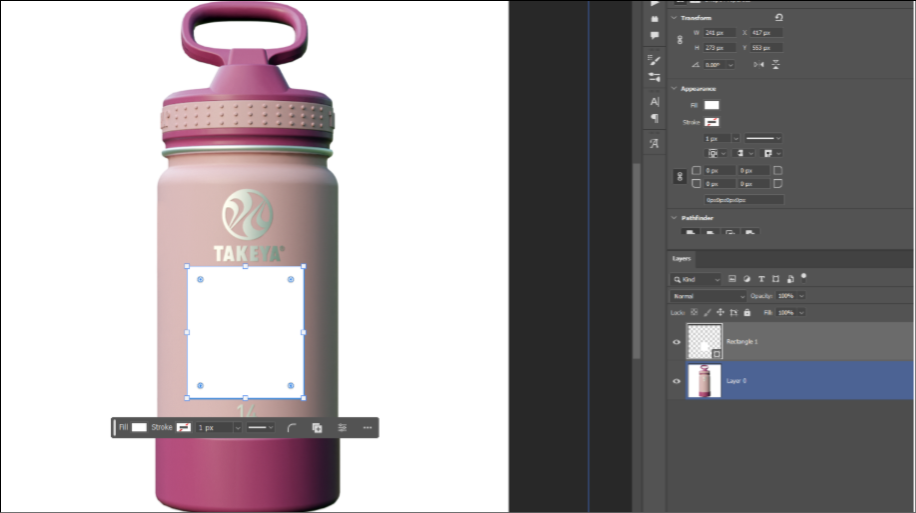
- Draw and measure the logo customization area accurately
2.2 Canvas Size
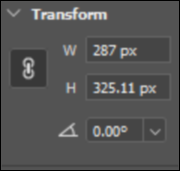
- Extract the canvas size from Photoshop
- Maintain correct aspect ratio
- Avoid unnecessarily large textures; keep resolution optimized
Steps to determine canvas size:
- Open the model render in Photoshop
- Mark the logo placement area
- Measure the canvas dimensions
Requirements:
- Draw Canvas width in photoshop and use this size to define the canvas size in model.
- Height should follow the correct aspect ratio
2.3 Create Logo Mesh
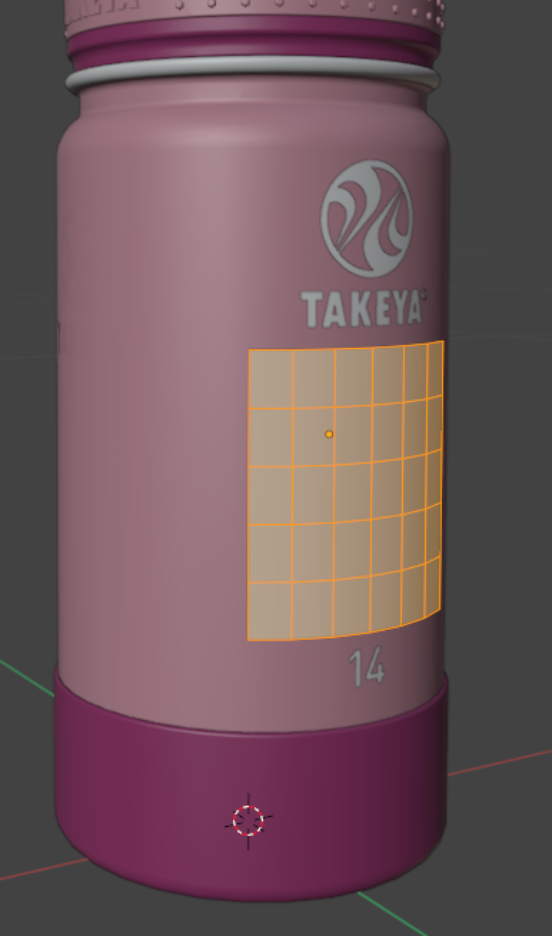
- Create a separate mesh (plane or curved, based on surface)
- Position it exactly over the logo area
- Keep it slightly above the surface
- Do not merge it with the main model
2.4 UV Mapping
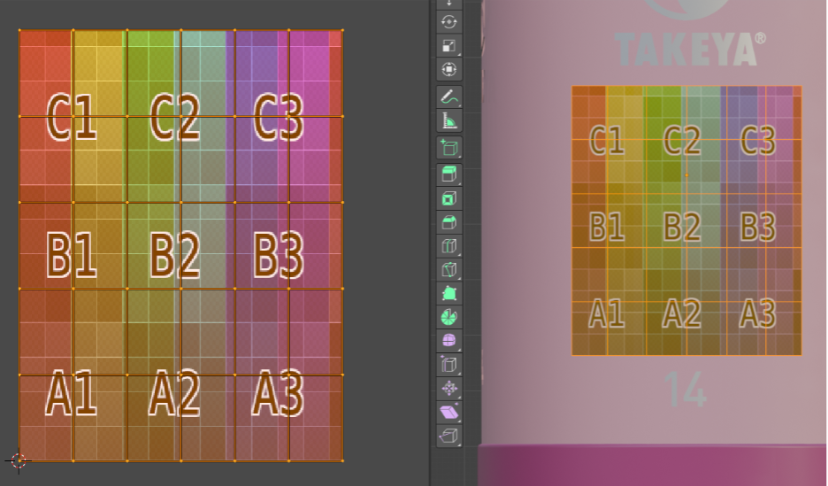
- Generate UVs based on the measured canvas size
- Align UV layout with the logo area proportions
Ensure:
- No stretching
- Correct orientation
- Clean and organized UV islands
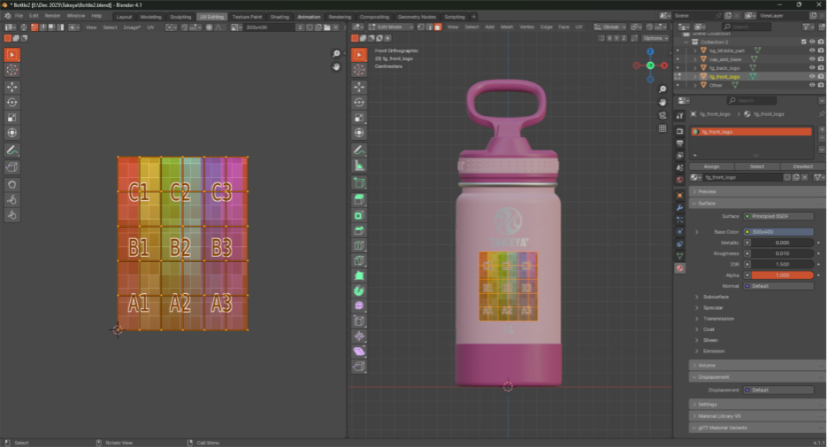
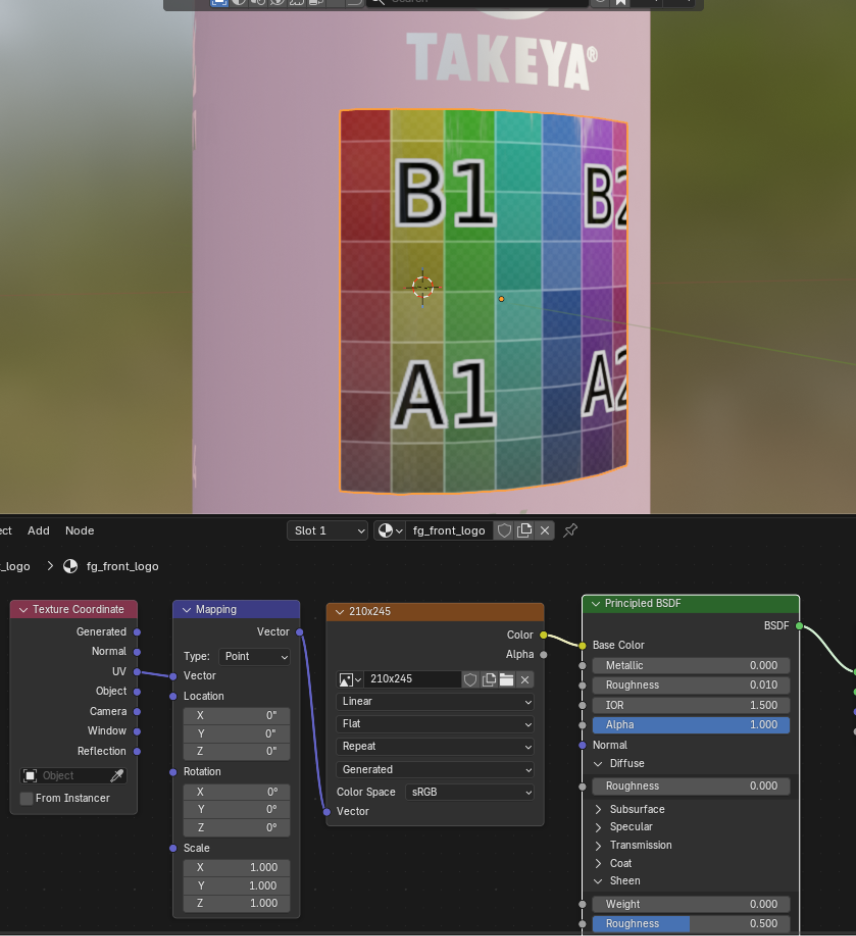
2.5 Canvas Mesh Alignment
The mesh must match:
- Logo area shape
- Canvas aspect ratio
- UV should directly correspond to the Photoshop measurement
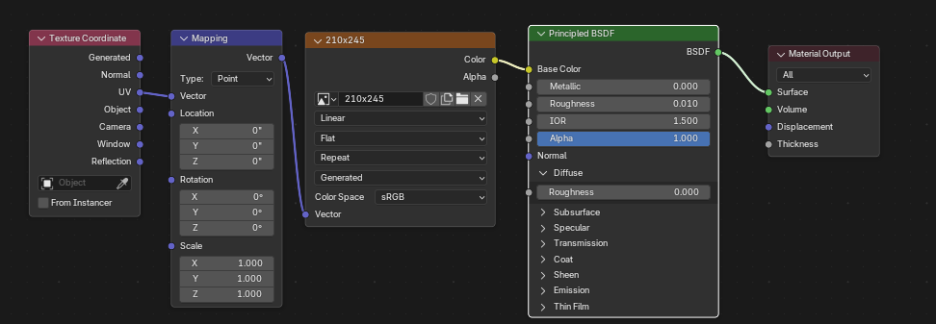
2.6 Material Setup for customization Mesh/Layer
- Apply a dedicated material to the logo mesh for customization
3. Logo Layer and Naming
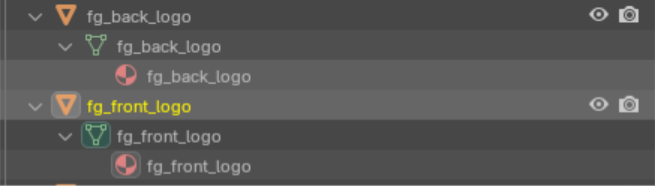
- Create a dedicated layer for the logo.
- Ensure naming consistency across all elements
Example:
- Mesh Name: fg_front_logo
- Layer Name: fg_front_logo
- Material Name: fg_front_logo
Structure example:
View Layer - fg_front_logo
There must be:
- No grouping
- No parents
- No nested layers
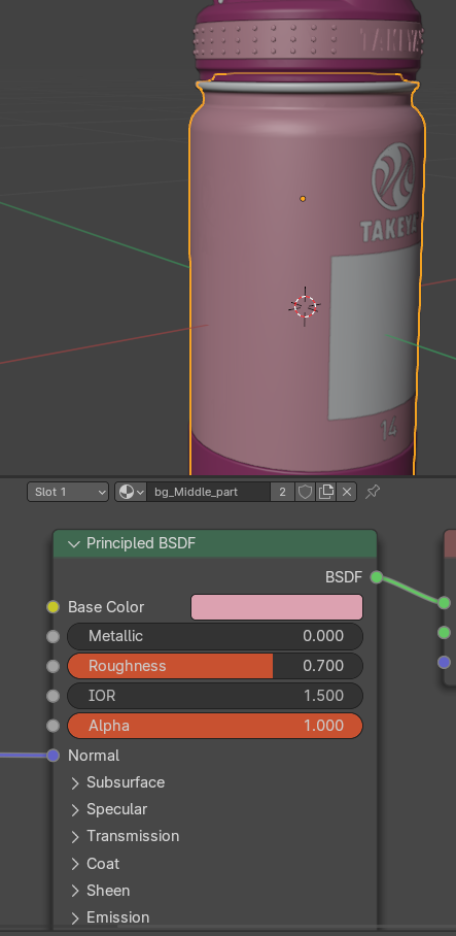
2.7 Material Setup (Other Meshes)
- Keep all other mesh materials unchanged
- Do not modify existing material settings
3. Model Position & Transform Reset
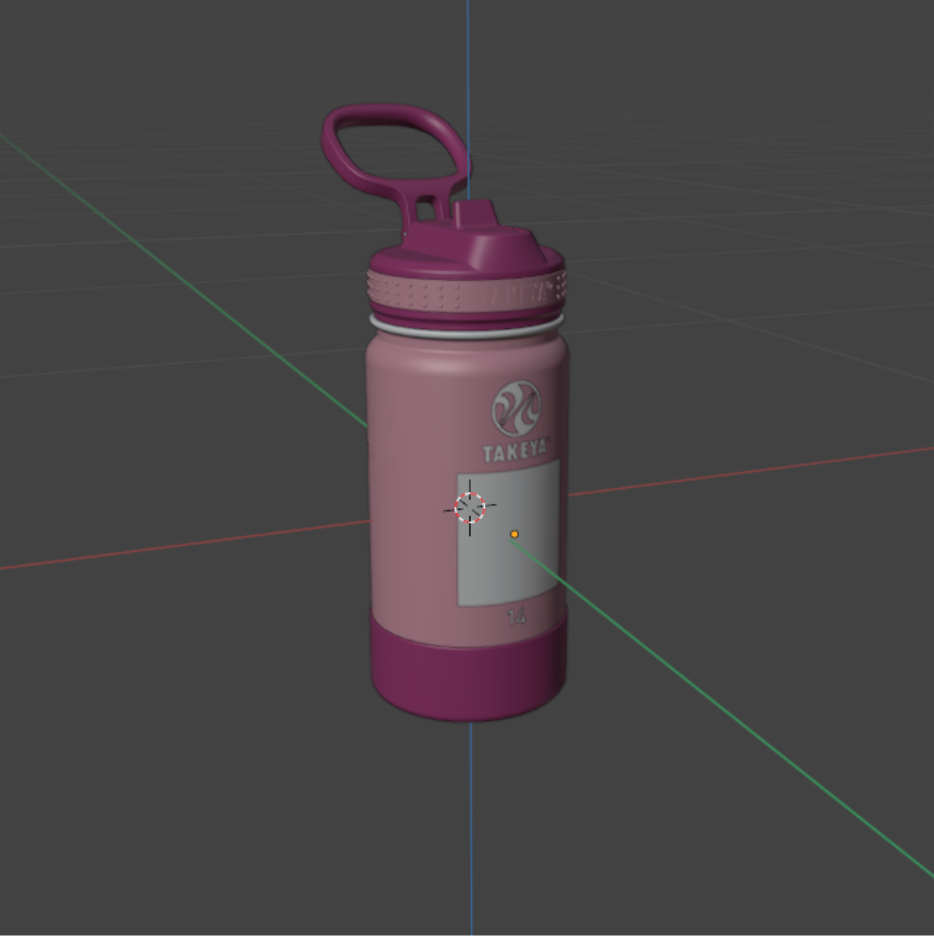
3.1 Center the Model
- Position the model at grid center: (0, 0, 0)
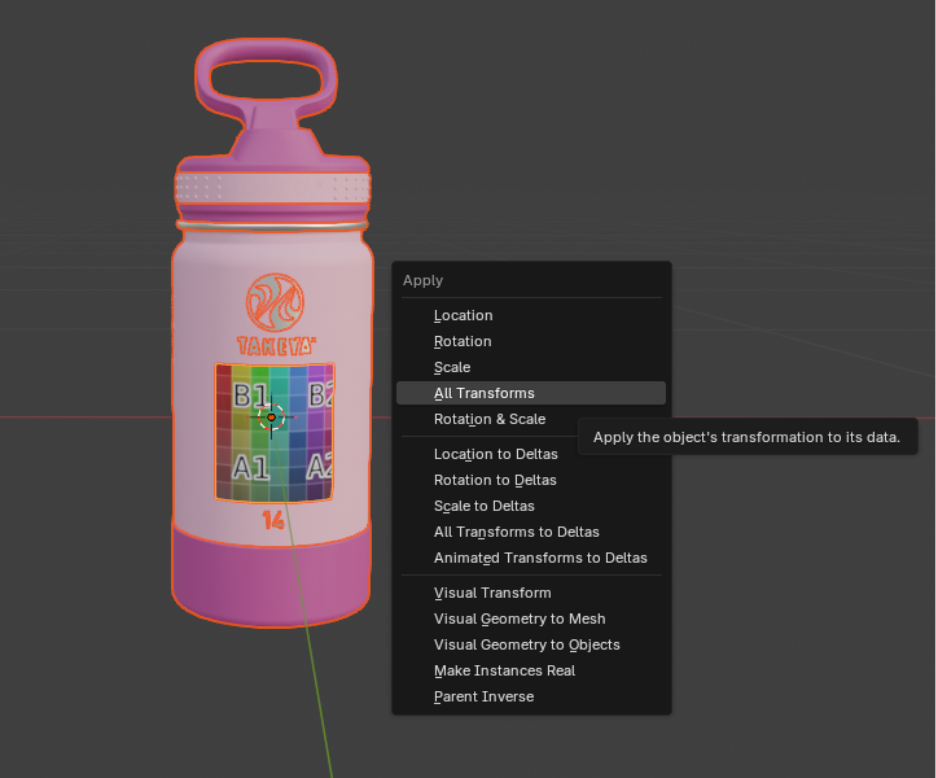
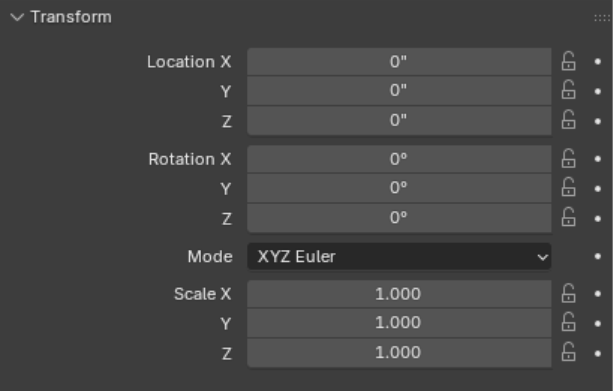
3.2 Reset Transforms
Remove all transform values:
- Location → 0,0,0
- Rotation → 0,0,0
- Scale → 1,1,1
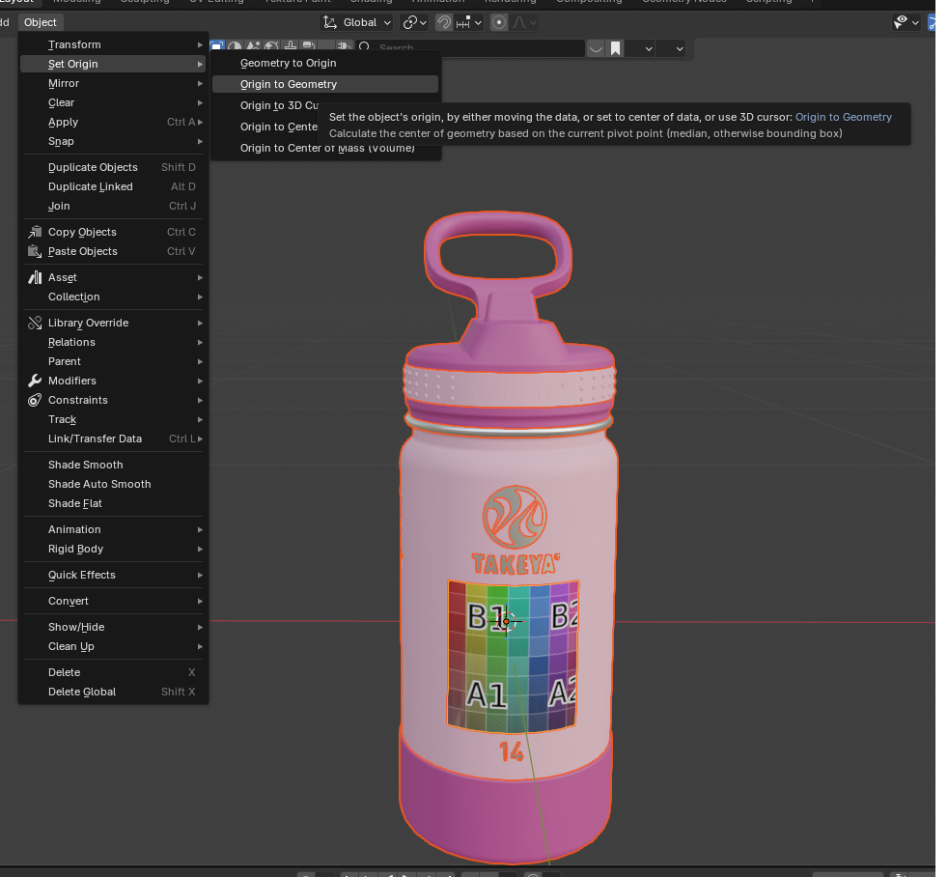
3.3 Origin Point
- Set the origin to the center of the model
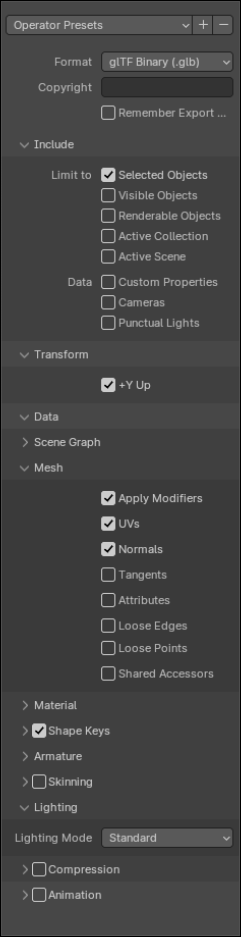
4. Export Setting (GLB)
- Export the finalized model in GLB format with all optimizations applied
Final Notes and Layers Structure
- Keep structure simple and clean
- Avoid unnecessary objects or hierarchy
- Ensure the model is ready for direct use in customization systems
The final Blender structure should look like this:
Blender File
└── View Layer
      └── fg_front_logo